

Looking up a value in one table and bringing back related information from another is one of the most common jobs in Excel. For decades that meant VLOOKUP, with its column numbers, its inability to look left and its habit of breaking when someone inserted a column. XLOOKUP fixes all of that, and once you are used to it, you will rarely go back.
This guide explains XLOOKUP’s syntax, then works through exact matches, “not found” messages, looking left, approximate matches for bands such as tax rates or commission tiers, wildcard searches, returning multiple columns and two-way lookups. Each example uses a small table you can type into a blank workbook in a couple of minutes.
Which versions of Excel have XLOOKUP?
XLOOKUP is available in Microsoft 365, Excel 2021, Excel 2024 and Excel for the web. It is not available in Excel 2019 or earlier. If you share workbooks with people on older versions, they will see a #NAME? error; in that case use INDEX with MATCH, covered near the end of this guide.
The syntax
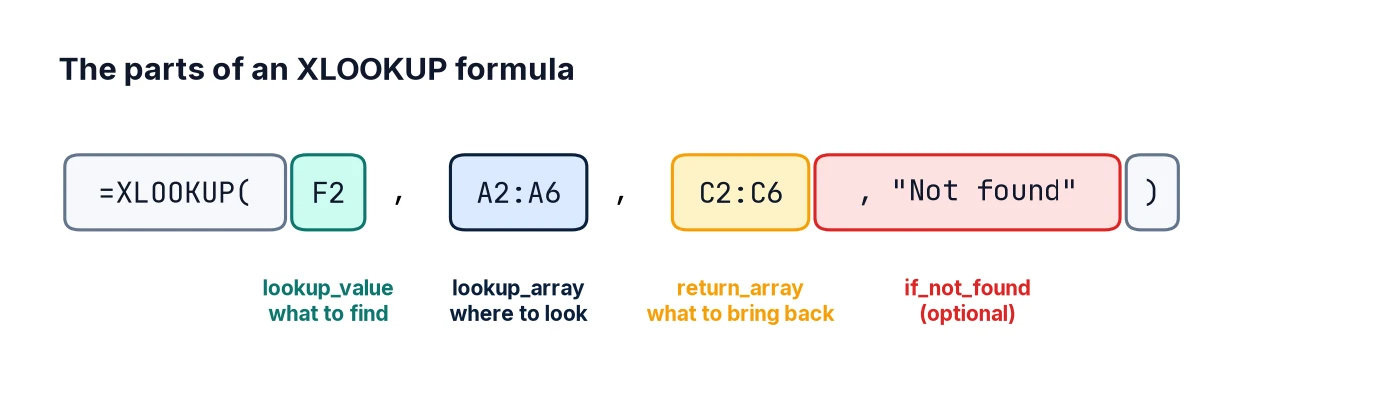
=XLOOKUP(lookup_value, lookup_array, return_array, [if_not_found], [match_mode], [search_mode])- lookup_value – what you are looking for, such as a product code.
- lookup_array – the single column (or row) to search.
- return_array – the column (or row) to return a value from. It must be the same size as the lookup array.
- if_not_found (optional) – what to show if there is no match.
- match_mode (optional) – 0 exact match (default), -1 exact or next smaller, 1 exact or next larger, 2 wildcard match.
- search_mode (optional) – 1 search first to last (default), -1 last to first, 2 and -2 binary search on sorted data.
Only the first three arguments are required, and the default is an exact match – a big improvement on VLOOKUP, whose default approximate match has caused countless wrong answers.
Set up the sample data
In a new sheet, enter this product table in cells A1:D6:
     A           B                 C           D
1    Code        Product           Category    Price
2    P-101       Desk lamp         Lighting    24.99
3    P-102       Office chair      Furniture   149.00
4    P-103       Monitor arm       Accessories 39.50
5    P-104       Standing desk     Furniture   329.00
6    P-105       LED strip         Lighting    17.25
Then in F1 type Code to find and in F2 type P-103. We will put formulas in column G.
Step 1: A basic exact match
To return the product name for the code in F2:

=XLOOKUP(F2, A2:A6, B2:B6)The result is Monitor arm. Read it as: “find F2 in A2:A6 and return the matching value from B2:B6.” To return the price instead, just change the return array to D2:D6. There is no column number to count, and inserting a column between A and D will not break the formula, because Excel adjusts the ranges automatically.
Step 2: Handle missing values cleanly
Change F2 to P-999. The basic formula returns #N/A. Use the fourth argument to show something more helpful:
=XLOOKUP(F2, A2:A6, B2:B6, "Code not found")This replaces the old pattern of wrapping lookups in IFERROR. It is also safer: IFERROR hides every kind of error, including genuine mistakes in your formula, whereas if_not_found only handles the “no match” case.
Step 3: Look to the left
VLOOKUP can only return values from columns to the right of the lookup column. XLOOKUP does not care. To find the code for a product name typed in F4:
=XLOOKUP(F4, B2:B6, A2:A6, "Not found")With Standing desk in F4, this returns P-104.
Step 4: Use a Table for ranges that grow
Select A1:D6 and press Ctrl+T to convert it into an Excel Table, then name it Products on the Table Design tab. Your formula can now use structured references:
=XLOOKUP(F2, Products[Code], Products[Product], "Code not found")When you add new products to the bottom of the table, the formula includes them automatically. Fixed ranges such as A2:A6 do not grow, which is a common cause of lookups that suddenly “miss” new data.
Step 5: Approximate match for bands and tiers
Lookups are not only for exact codes. Suppose sales staff earn commission based on bands. Enter this in I1:J5:
     I              J
1    Sales from     Commission
2    0              0%
3    10000          3%
4    25000          5%
5    50000          7%
For a sales figure in L2 (say 31,500), return the commission rate with match mode -1, “exact match or next smaller item”:
=XLOOKUP(L2, I2:I5, J2:J5, , -1)31,500 has no exact match, so XLOOKUP takes the next smaller threshold, 25,000, and returns 5%. Note the empty fourth argument (two commas) because we are skipping if_not_found. Unlike VLOOKUP’s approximate match, XLOOKUP does not require the bands to be sorted when you use match modes -1 or 1, although keeping them sorted makes the table easier for people to check.
Step 6: Wildcard searches
Match mode 2 lets you use * (any characters) and ? (a single character). To find the first product whose name contains “desk”:
=XLOOKUP("*desk*", B2:B6, B2:B6, "No match", 2)This returns Standing desk. Lookups are not case-sensitive, so “Desk” and “desk” match equally. To build the pattern from a cell, join the wildcards: "*" & F6 & "*".
Step 7: Find the last match
By default XLOOKUP returns the first match. Search mode -1 searches from the bottom up, which is ideal for “most recent” questions in a transaction log sorted by date. Using our product table, the last Furniture product listed is found with:
=XLOOKUP("Furniture", C2:C6, B2:B6, , 0, -1)This returns Standing desk rather than Office chair.
Step 8: Return several columns at once
If the return array is several columns wide, XLOOKUP returns all of them and the result “spills” into neighbouring cells:
=XLOOKUP(F2, A2:A6, B2:D6)With P-103 in F2, this fills three cells with Monitor arm, Accessories and 39.5. Make sure the cells to the right are empty, otherwise you will see a #SPILL! error.
Step 9: Two-way lookups
To look up a value at the intersection of a row and a column, nest one XLOOKUP inside another. The inner XLOOKUP returns a whole column, which the outer one then searches. For the price of P-102, with the header name “Price” in F8:
=XLOOKUP(F2, A2:A6, XLOOKUP(F8, A1:D1, A2:D6))Change F8 to “Category” and the same formula returns the category instead. This is handy for building simple dashboards where users pick both the item and the measure.
XLOOKUP vs VLOOKUP vs INDEX/MATCH
- VLOOKUP: works in every version, but needs a column number, cannot look left and defaults to approximate match.
- INDEX/MATCH: flexible and works in every version:
=INDEX(B2:B6, MATCH(F2, A2:A6, 0)). Remember the0for an exact match. - XLOOKUP: the clearest and most capable, if everyone using the workbook has a supported version.
Common mistakes
- Lookup and return arrays of different sizes, such as A2:A6 and B2:B7. XLOOKUP returns
#VALUE!. - Numbers stored as text. A code typed as the number 1001 will not match the text “1001”. Check alignment (text aligns left by default) or use
VALUE()/TEXT()to make types consistent. - Hidden spaces. “P-103 ” with a trailing space does not match “P-103”. Clean data with
TRIM(), or with Power Query – see Cleaning Data with Power Query. - Relative ranges that move when copied. When copying a formula down, lock ranges with
$(for example$A$2:$A$6) or use a Table. - Duplicate keys. XLOOKUP silently returns the first match. If codes should be unique, check with
=COUNTIF(A:A, A2)>1.
FAQ
Is XLOOKUP slower than VLOOKUP?
For typical workbooks the difference is not noticeable. On very large sorted data, binary search modes (2 or -2) are faster.
Can XLOOKUP match on two criteria?
Yes. Multiply conditions together: =XLOOKUP(1, (A2:A100=F2)*(C2:C100=G2), D2:D100). Each condition produces 1s and 0s, and only rows meeting both produce a 1.
Should I use XLOOKUP or a pivot table?
They do different jobs. XLOOKUP fetches individual values; pivot tables summarise. See Excel Pivot Tables.
What is the equivalent in Python or SQL?
A join. In pandas use merge (guide); in SQL use a LEFT JOIN.
Next steps
Put your lookups to work with Excel Pivot Tables, clean source data with Power Query, and when spreadsheets start to creak, read Excel vs Python: When to Use Which.