

“What were total sales by region?” “Which product has the highest average rating?” “How many customers signed up each month?” Questions like these are the bread and butter of data analysis, and in pandas they are almost all answered with groupby.
This tutorial explains how groupby works, then builds up from simple totals to multiple aggregations, named outputs, grouping by several columns, transform and filter. By the end you will be able to replace most Excel pivot tables with a few lines of readable code.
The idea behind groupby: split, apply, combine
Every groupby operation follows three steps:
![Diagram of sales.groupby('region')['revenue'].sum(): rows are split into East, North and South groups, each group is summed, and the results are combined into East 1,070, North 2,255 and South 3,610](https://datascienceway.com/wp-content/uploads/2026/10/dsw-groupby-split-apply-combine.webp)
- Split the rows into groups based on the values in one or more columns.
- Apply a function to each group – a sum, mean, count or something custom.
- Combine the results into a new DataFrame or Series.
If you have used SQL, this is the same idea as GROUP BY (covered in SQL GROUP BY and HAVING). If you use Excel, it is what a pivot table does behind the scenes.
Sample data
import pandas as pd

sales = pd.DataFrame({
    "date": pd.to_datetime(["2024-01-03", "2024-01-15", "2024-01-20", "2024-02-02",
                            "2024-02-10", "2024-02-18", "2024-03-05", "2024-03-22"]),
    "region": ["North", "South", "North", "East", "South", "North", "East", "South"],
    "product": ["Laptop", "Mouse", "Mouse", "Laptop", "Laptop", "Monitor", "Mouse", "Monitor"],
    "units": [2, 10, 5, 1, 3, 2, 8, 4],
    "revenue": [1800.0, 150.0, 75.0, 950.0, 2700.0, 380.0, 120.0, 760.0],
})
print(sales)
Step 1: A single aggregation
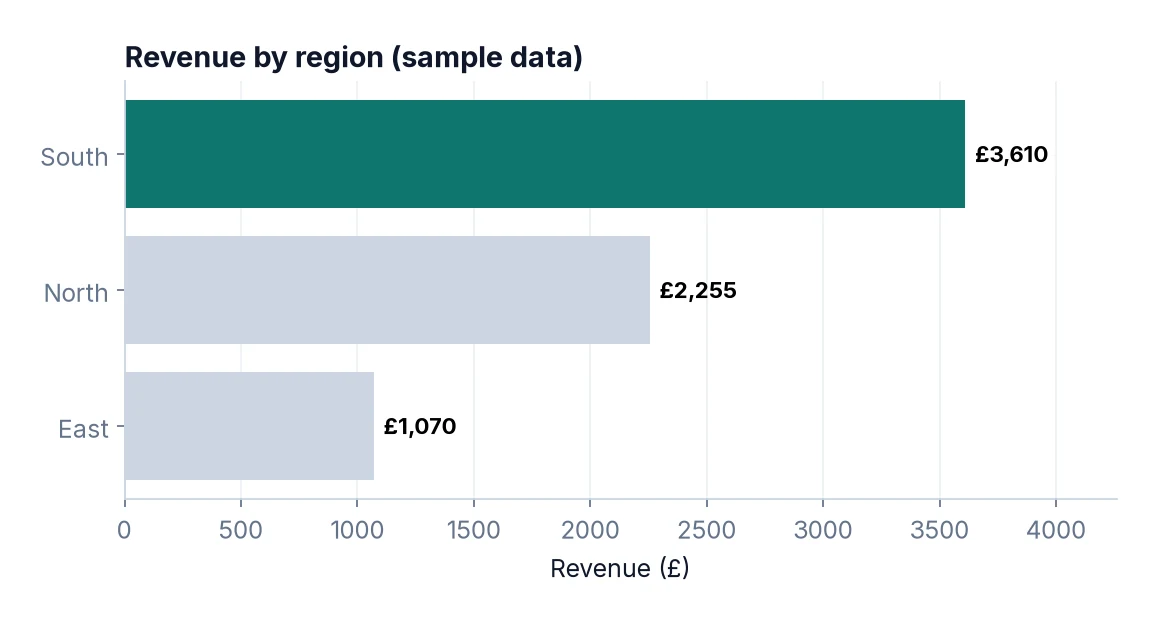
Total revenue by region:
print(sales.groupby("region")["revenue"].sum())Read this left to right: group the rows by region, select the revenue column, and sum it. The result is a Series indexed by region. Other common aggregations are mean(), median(), count(), min(), max() and nunique().
Note that count() counts non-missing values, while size() counts rows including missing values. That difference matters when your data has gaps.
Step 2: Get a DataFrame back with reset_index
The grouped column becomes the index. For exporting, plotting or merging, you usually want it as an ordinary column:
by_region = sales.groupby("region", as_index=False)["revenue"].sum()
print(by_region.sort_values("revenue", ascending=False))
as_index=False does the same job as calling .reset_index() afterwards.
Step 3: Several aggregations at once with named agg
Most real summaries need more than one number. Named aggregation lets you specify each output column, the input column and the function, all in one readable call:
summary = sales.groupby("region").agg(
    orders=("revenue", "size"),
    total_revenue=("revenue", "sum"),
    avg_order=("revenue", "mean"),
    units_sold=("units", "sum"),
    products=("product", "nunique"),
).round(2)
print(summary)
This is the pattern worth memorising. The output columns have clear names, so there is no confusing multi-level header to flatten afterwards.
Step 4: Group by more than one column
Pass a list of columns to create one group per combination:
rp = sales.groupby(["region", "product"], as_index=False)["revenue"].sum()
print(rp)
To see this as a grid like a pivot table, use unstack() or pivot_table:
grid = sales.pivot_table(index="region", columns="product",
                         values="revenue", aggfunc="sum", fill_value=0)
print(grid)
Step 5: Group by time periods
For monthly totals, group by a period derived from the date. dt.to_period("M") is clear and works well for reporting:
monthly = sales.groupby(sales["date"].dt.to_period("M"))["revenue"].sum()
print(monthly)
You can also use pd.Grouper(key="date", freq="MS") inside groupby, which is handy when combining time with other columns. We cover dates in more depth in Working with Dates and Times in Pandas.
Step 6: transform – add group results back to each row
Sometimes you do not want a summary table; you want each row to know something about its group. For example, what share of its region’s revenue does each sale represent? transform returns a result the same length as the original DataFrame:
sales["region_total"] = sales.groupby("region")["revenue"].transform("sum")
sales["share_of_region"] = (sales["revenue"] / sales["region_total"]).round(3)
print(sales[["region", "product", "revenue", "region_total", "share_of_region"]])
This is the pandas equivalent of a SQL window function such as SUM(revenue) OVER (PARTITION BY region), which we explain in SQL Window Functions.
Step 7: filter – keep whole groups that meet a condition
To keep only regions with total revenue over £1,500, use filter. It returns the original rows for groups that pass the test:
big_regions = sales.groupby("region").filter(lambda g: g["revenue"].sum() > 1500)
print(big_regions[["region", "revenue"]])
This mirrors SQL’s HAVING clause.
Step 8: Ranking within groups
Finding the top item in each group is a frequent request. Sort, then take the first row per group:
top_sale = (sales.sort_values("revenue", ascending=False)
                 .groupby("region")
                 .head(1)[["region", "product", "revenue"]])
print(top_sale)

sales["rank_in_region"] = sales.groupby("region")["revenue"].rank(ascending=False, method="dense")
print(sales[["region", "revenue", "rank_in_region"]])
Step 9: Custom aggregation functions
If no built-in function fits, pass your own. Keep it simple and vectorised where possible:
def revenue_range(s):
    return s.max() - s.min()

print(sales.groupby("region")["revenue"].agg(revenue_range))
Custom Python functions are slower than built-in strings like "sum" on large data, so prefer built-ins when they exist.
Worked example: a monthly regional report
Let us put the pieces together into the kind of table a manager might actually ask for: revenue per region per month, with each region’s share of that month’s total. Working through it step by step shows how the techniques combine.
report = (
    sales.assign(month=sales["date"].dt.to_period("M"))
         .groupby(["month", "region"], as_index=False)
         .agg(revenue=("revenue", "sum"), orders=("revenue", "size"))
)
report["month_share"] = (
    report["revenue"] / report.groupby("month")["revenue"].transform("sum")
).round(3)
print(report)
There are three ideas in that short block. First, assign creates a month column without modifying the original DataFrame. Second, named aggregation produces clearly labelled outputs. Third, transform on the already-grouped result gives each row its month total, so the share can be calculated in a single vectorised step. Notice that the shares within each month add up to 1, which is a quick sanity check you should always perform on percentage calculations.
If you need this as a wide table for a slide or spreadsheet, finish with report.pivot(index="month", columns="region", values="revenue"). Keep the long version for further analysis, though: long, tidy tables are much easier to filter, merge and plot.
Performance tips for larger data
- Use the category dtype for grouping columns with a limited set of values, such as region or product. It reduces memory use and often speeds up grouping. If you do, pass
observed=Trueso that only categories that actually appear are returned. - Prefer built-in aggregation names (
"sum","mean") over lambdas; they run in optimised compiled code. - Select columns before aggregating so pandas does not do unnecessary work on columns you will throw away.
- Use
sort=Falseingroupbyif you do not need the groups sorted; it saves a little time on very large data.
Common mistakes
- Forgetting to select a column.
sales.groupby("region").sum()tries to sum every column, including text. In recent pandas versions this raises an error; select columns explicitly or passnumeric_only=True. - Confusing count and size.
countignores missing values;sizedoes not. - Missing values in the grouping column. By default, rows where the group key is
NaNare dropped. Usedropna=Falseto keep them as their own group. - Averaging averages. The mean of monthly averages is not the overall average unless every month has the same number of rows. Compute from raw data.
- Using apply for everything.
applyis flexible but slow. Tryagg,transformorfilterfirst.
FAQ
What is the difference between groupby and pivot_table?
pivot_table is built on groupby and reshapes the result into a grid with one grouping column across the top. Use groupby for long, tidy outputs and pivot_table for cross-tab views. Compare with Excel pivot tables.
How do I sort groupby results?
Chain .sort_values() after the aggregation, for example .sort_values("total_revenue", ascending=False).
How do I calculate a percentage of total?
Divide the grouped sum by the overall sum: s = df.groupby("region")["revenue"].sum(); s / s.sum().
Can I group by a calculated value?
Yes – pass a Series instead of a column name, as we did with sales["date"].dt.to_period("M").
Next steps
Make sure your data is loaded and cleaned correctly first with How to Read CSV Files in Pandas and Cleaning Messy Data with Pandas. Then learn to combine tables with pandas merge and present your summaries clearly with Matplotlib Basics.