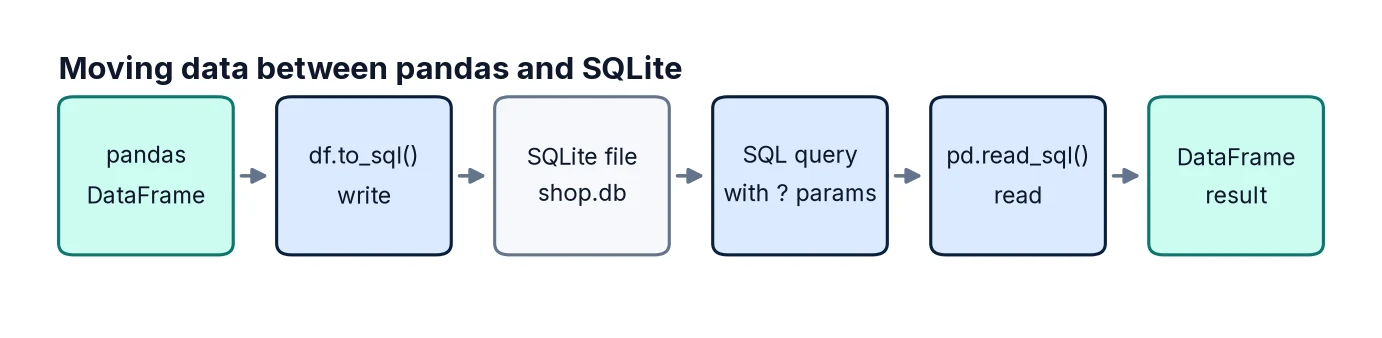
SQLite is a complete SQL database stored in a single file, and Python ships with everything you need to use it. There is no server to install, no password to configure and nothing to pay for. That makes it ideal for learning SQL, for small applications, and for analysis projects where a folder of CSV files has become hard to manage.
This tutorial shows how to create a SQLite database from Python, load data into it with pandas, query it back into DataFrames, use parameters safely, add indexes and avoid common pitfalls. All of the code runs with the Python standard library plus pandas.
Why combine SQLite and pandas?
- Persistence: data survives between sessions in one portable file.
- SQL where it shines: filtering, joining and aggregating large tables before pulling a smaller result into memory.
- pandas where it shines: reshaping, statistics and plotting.
- Practice: the SQL you write here is very close to what you would use on PostgreSQL or SQL Server.
Step 1: Connect and create a database
import sqlite3
import pandas as pd
import numpy as np

con = sqlite3.connect("shop.db")    # creates the file if it does not exist
print(sqlite3.sqlite_version)        # version of the SQLite library
Use sqlite3.connect(":memory:") for a temporary database held in memory – useful for tests. Window functions need SQLite 3.25+, and RIGHT/FULL joins need 3.39+; recent Python releases include newer versions than these.
Step 2: Create a table with SQL
Defining tables explicitly lets you set types, primary keys and constraints:
con.executescript("""
DROP TABLE IF EXISTS customers;
CREATE TABLE customers (
    customer_id INTEGER PRIMARY KEY,
    name        TEXT NOT NULL,
    region      TEXT
);
""")
con.executemany(
    "INSERT INTO customers (customer_id, name, region) VALUES (?, ?, ?)",
    [(1, "Ava", "North"), (2, "Ben", "South"), (3, "Chloe", "North"), (4, "Dan", "East")],
)
con.commit()
print(con.execute("SELECT COUNT(*) FROM customers").fetchone())
executemany inserts many rows efficiently. Changes are not saved to the file until you call commit().
Step 3: Load a DataFrame with to_sql
For larger data, pandas can create and fill a table in one line:
rng = np.random.default_rng(7)
orders = pd.DataFrame({
    "order_id": np.arange(1, 1001),
    "customer_id": rng.integers(1, 5, 1000),
    "order_date": pd.date_range("2024-01-01", periods=1000, freq="8h").strftime("%Y-%m-%d"),
    "amount": rng.gamma(2, 30, 1000).round(2),
})
orders.to_sql("orders", con, if_exists="replace", index=False)
print(pd.read_sql("SELECT COUNT(*) AS n FROM orders", con))if_exists="replace"drops and recreates the table;"append"adds rows;"fail"(the default) raises an error if it exists.index=Falsestops pandas writing its row index as an extra column.- Dates are stored as ISO text (
YYYY-MM-DD), the standard in SQLite. It sorts correctly and works with SQLite’s date functions.
Note that to_sql with replace creates columns with types inferred from the DataFrame, without primary keys. If keys and constraints matter, create the table first with SQL, then use if_exists="append".
Step 4: Query into a DataFrame with read_sql
query = """
SELECT c.region,
       strftime('%Y-%m', o.order_date) AS month,
       COUNT(*)                        AS orders,
       ROUND(SUM(o.amount), 2)         AS revenue
FROM orders AS o
JOIN customers AS c ON c.customer_id = o.customer_id
GROUP BY c.region, month
ORDER BY month, c.region
"""
summary = pd.read_sql(query, con)
print(summary.head(8))
print(summary.dtypes)
The database does the joining and grouping, and only the small summary comes back into memory. For tables too large to fit in RAM, this is the key benefit. The SQL itself is explained in SQL Joins Explained and SQL GROUP BY and HAVING.
To get real datetime columns back, use parse_dates:
recent = pd.read_sql("SELECT * FROM orders WHERE order_date >= '2024-11-01'", con,
                     parse_dates=["order_date"])
print(recent.dtypes)
Step 5: Always use parameters for values
Never build SQL by pasting user-supplied values into a string with f-strings or +. It breaks on values containing quotes (such as O’Brien) and opens the door to SQL injection. Use placeholders instead:
region = "North"
min_amount = 100

df = pd.read_sql(
    """SELECT o.order_id, c.name, o.amount
       FROM orders o JOIN customers c ON c.customer_id = o.customer_id
       WHERE c.region = ? AND o.amount >= ?
       ORDER BY o.amount DESC LIMIT 5""",
    con,
    params=(region, min_amount),
)
print(df)

# Named parameters also work
row = con.execute("SELECT name FROM customers WHERE customer_id = :cid", {"cid": 2}).fetchone()
print(row)
Placeholders are for values only. Table and column names cannot be parameters; if they must vary, check them against a fixed list of allowed names.
Step 6: Add indexes for speed
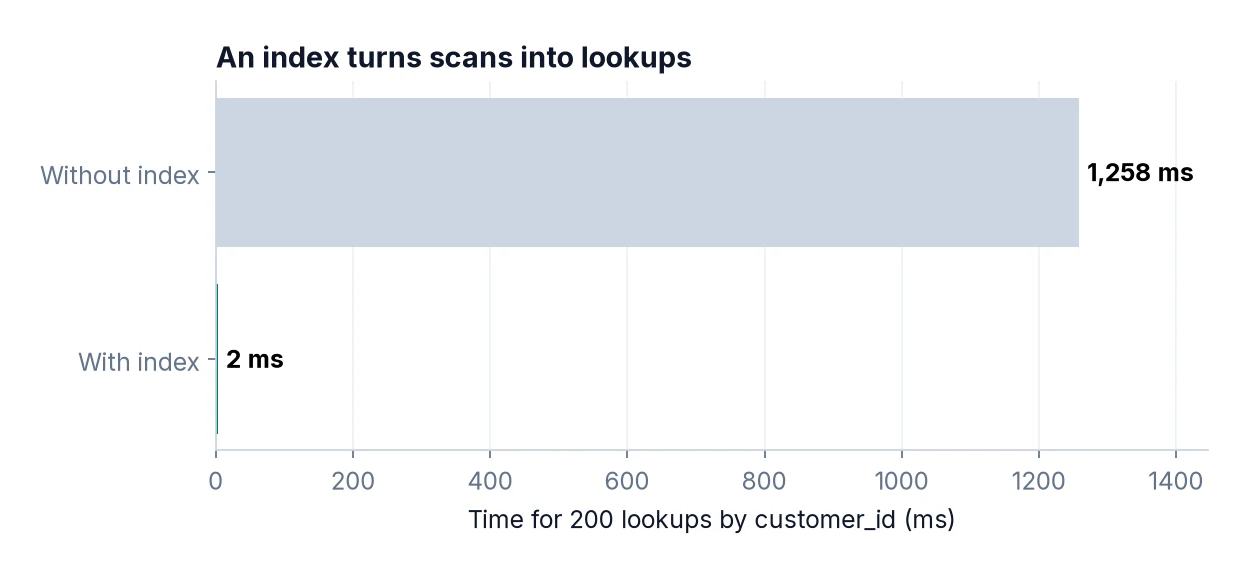
An index lets SQLite find rows without scanning the whole table. Add them on columns you frequently filter or join on:
con.execute("CREATE INDEX IF NOT EXISTS idx_orders_customer ON orders(customer_id)")
con.execute("CREATE INDEX IF NOT EXISTS idx_orders_date ON orders(order_date)")
con.commit()

plan = con.execute(
    "EXPLAIN QUERY PLAN SELECT * FROM orders WHERE customer_id = 2"
).fetchall()
print(plan)
The query plan should mention USING INDEX idx_orders_customer. On a thousand rows the difference is negligible; on millions it can be dramatic. Indexes do slow down inserts slightly and take up space, so add them where queries need them rather than everywhere.
Step 7: Use transactions for safe writes
Using the connection as a context manager commits automatically if the block succeeds and rolls back if an error occurs, so you never end up with half-applied changes:
try:
    with con:
        con.execute("UPDATE orders SET amount = amount * 1.1 WHERE customer_id = 1")
        raise ValueError("Something went wrong mid-update")
except ValueError as e:
    print("Rolled back:", e)

print(pd.read_sql("SELECT ROUND(SUM(amount), 2) AS total FROM orders WHERE customer_id = 1", con))
Because the error occurred inside the with block, the 10% increase was rolled back. Note that the context manager handles the transaction but does not close the connection.
Step 8: Load large CSV files in chunks
To move a CSV that is too large for memory into SQLite, read and append it in chunks:
orders.to_csv("big_orders.csv", index=False)   # stand-in for a large file

for i, chunk in enumerate(pd.read_csv("big_orders.csv", chunksize=250)):
    chunk.to_sql("orders_import", con, if_exists="replace" if i == 0 else "append", index=False)

print(pd.read_sql("SELECT COUNT(*) AS n FROM orders_import", con))
See How to Read CSV Files in Pandas for setting types while reading.
Step 9: Inspect and close
tables = pd.read_sql("SELECT name FROM sqlite_master WHERE type = 'table'", con)
print(tables)
print(pd.read_sql("PRAGMA table_info(orders)", con)[["name", "type"]])
con.close()
Close connections when you have finished, especially in scripts that run repeatedly. For browsing the file visually, the free DB Browser for SQLite is useful.
Common mistakes
- Forgetting to commit. Inserts and updates disappear when the connection closes.
- String-formatting values into SQL. Use parameters.
- Writing the pandas index as an extra column; pass
index=False. - Storing dates in DD/MM/YYYY text, which does not sort or compare correctly. Use ISO format.
- Using
if_exists="replace"by accident and losing a table’s keys or data. - Several processes writing at once. SQLite allows only one writer at a time; for concurrent multi-user writes, use a server database such as PostgreSQL.
FAQ
How large can a SQLite database be?
Far larger than most analysis projects need – the theoretical limit is many terabytes. In practice, performance depends on your queries and indexes.
Can I use the same code with PostgreSQL or MySQL?
Mostly. Install SQLAlchemy and the relevant driver, create an engine, and pass it to read_sql/to_sql. The placeholder style can differ (for example %s with some drivers).
Does SQLite enforce data types?
Loosely, by default: a column declared INTEGER can still store text. Newer versions support STRICT tables if you want enforcement.
Is SQLite good for learning SQL?
Yes. Start with SQL SELECT and WHERE for Absolute Beginners.
Next steps
Practise more advanced queries with window functions and CTEs, then analyse the results with pandas groupby.